How to install Ease Menu on Samsung Digital Signage
First, ensure your screen is connected to the internet before proceeding.
If another app is running, click "Exit" on the Remote.
Press the "Settings/Menu" button on the remote to begin.
Current/New Models
Select Setting > System
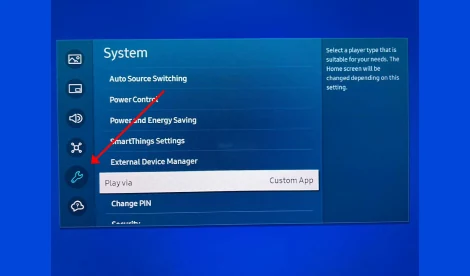
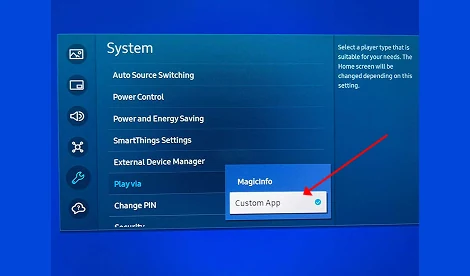
Select play via Custom App from the system setting
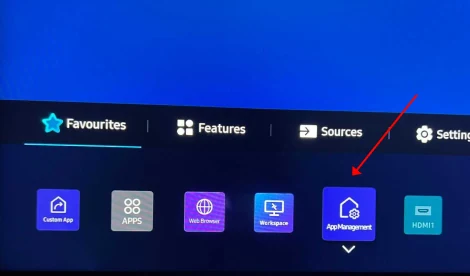
Press the "Home" button on the remote to begin.
Select App Management
Select Install Custom App
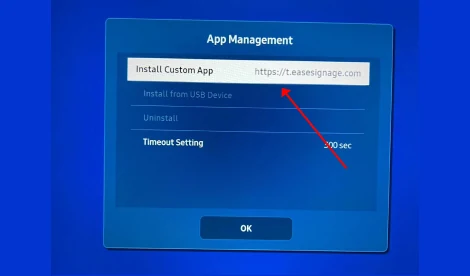
Enter in the URL of the Ease Menu app for SSSP:
https://t.easesignage.com
Select Go
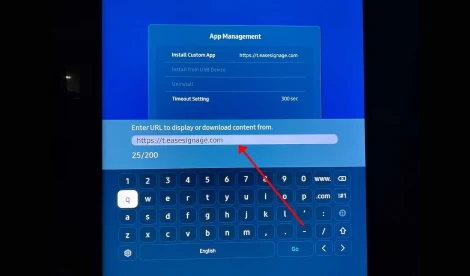
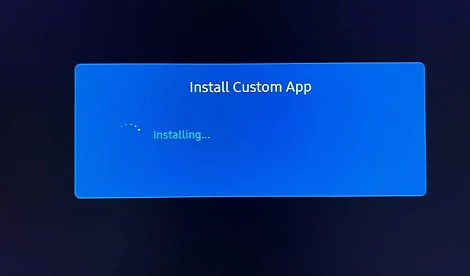
The Ease Menu app will automatically begin to download & install.
Older Models
Select Menu > System
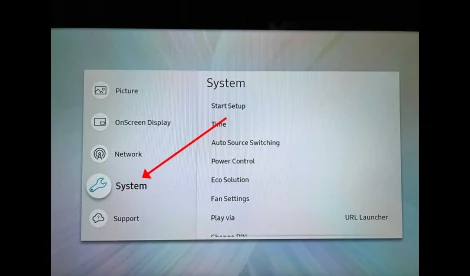
Select play via URl Luncher from the system setting
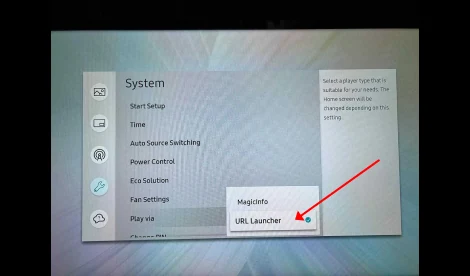
Select URL Launcher Settings
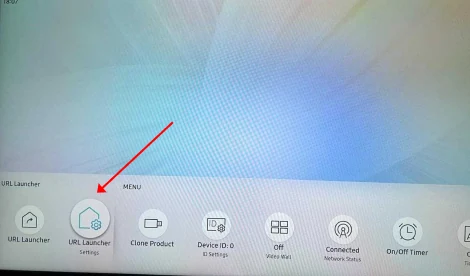
Select Install Web App
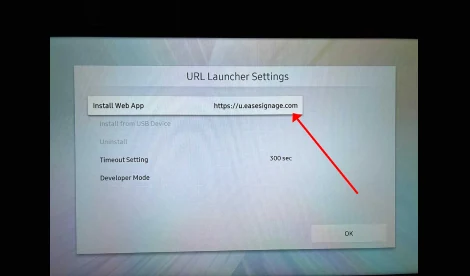
Enter in the URL of the Ease Menu app for SSSP:
https://u.easesignage.com
Select Done
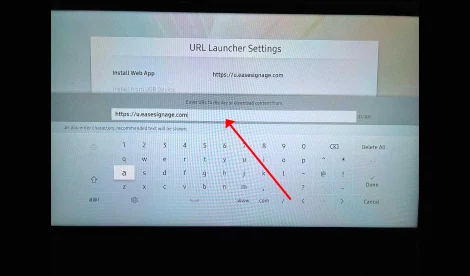
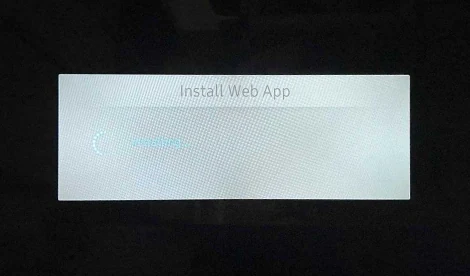
The Ease Menu app will automatically begin to download & install.
Current/New Models
Select Install Custom App
Enter in the URL of the Ease Menu app for SSSP:
https://t.easesignage.com
Older Models
Select Install Web App
Enter in the URL of the Ease Menu app for SSSP:
https://u.easesignage.com
Current/New Models
Select Go
The Ease Menu app will automatically begin to download & install.
Older Models
Select Done
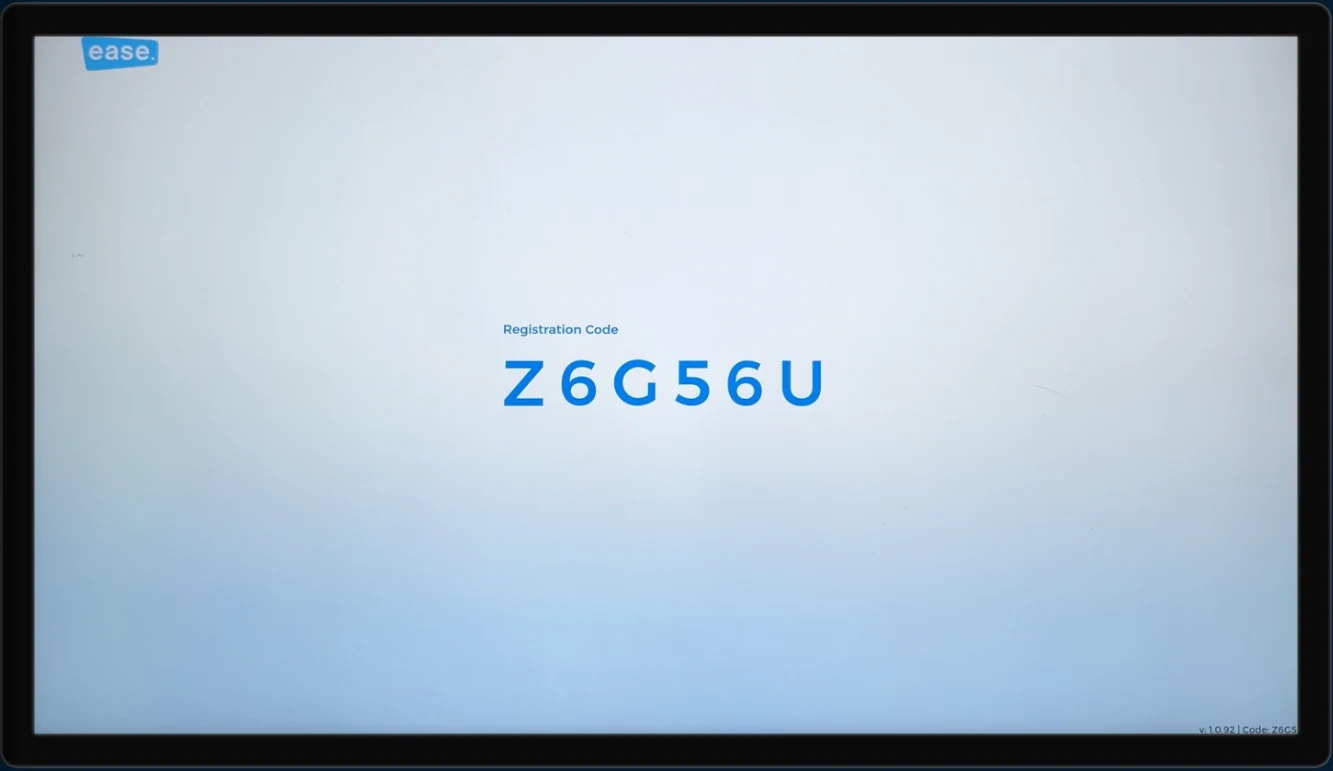
Now you are ready to pair the screen and begin assigning content to it.

NOTE FOR PORTRAIT (VERTICAL) MOUNTED SCREENS:
If you notice that the screen is physically mounted vertically but the display output is horizontal (Landscape mode), you must set the hardware orientation manually through the TV’s system menu. Do not rely on the app to rotate the screen. Follow the guide below based on the display brand.
Depending on whether the customer has newer or older Samsung models, follow one of these paths:
Method A (For Newer Models - Tizen 6.5 / 7.0 / Q-Series / QB43C):
- Press the Settings button on the remote.
- Select OnScreen Display.
- Select Display Orientation.
- Select OnScreen Menu Orientation.
- Select Portrait.
- Select Yes when prompted.
The screen will now switch to the Portrait (Vertical) orientation
Method B (For Older Models - Tizen 4.0 / 5.0 / OH55A-S):
- Press the Settings button on the remote.
- Select OnScreen Display.
- Select Display Orientation.
- Select OnScreen Menu Orientation.
- Select Portrait.
- Select Yes when prompted.
The screen will now switch to the Portrait (Vertical) orientation